Document Structure
Chapters, front matter, and back matter are created from your heading styles. Subheadings are preserved.
Lacuna is book formatting software for Windows and Mac that turns a finished Word manuscript into a professionally typeset print book and EPUB. Here is how to import your .docx file.
.docx file from the dialogDocument Structure
Chapters, front matter, and back matter are created from your heading styles. Subheadings are preserved.
Text Styles
Bold, italic, alignment, and other formatting transfer with your content.
Ornamental Breaks
Scene dividers like *** or ### are automatically converted to ornamental break elements.
Images
All images import alongside your text, ready for your book.
Other Elements
Footnotes and tables transfer and are properly formatted.
Your manuscript opens in the editor with sections in the left sidebar and a live preview on the right.
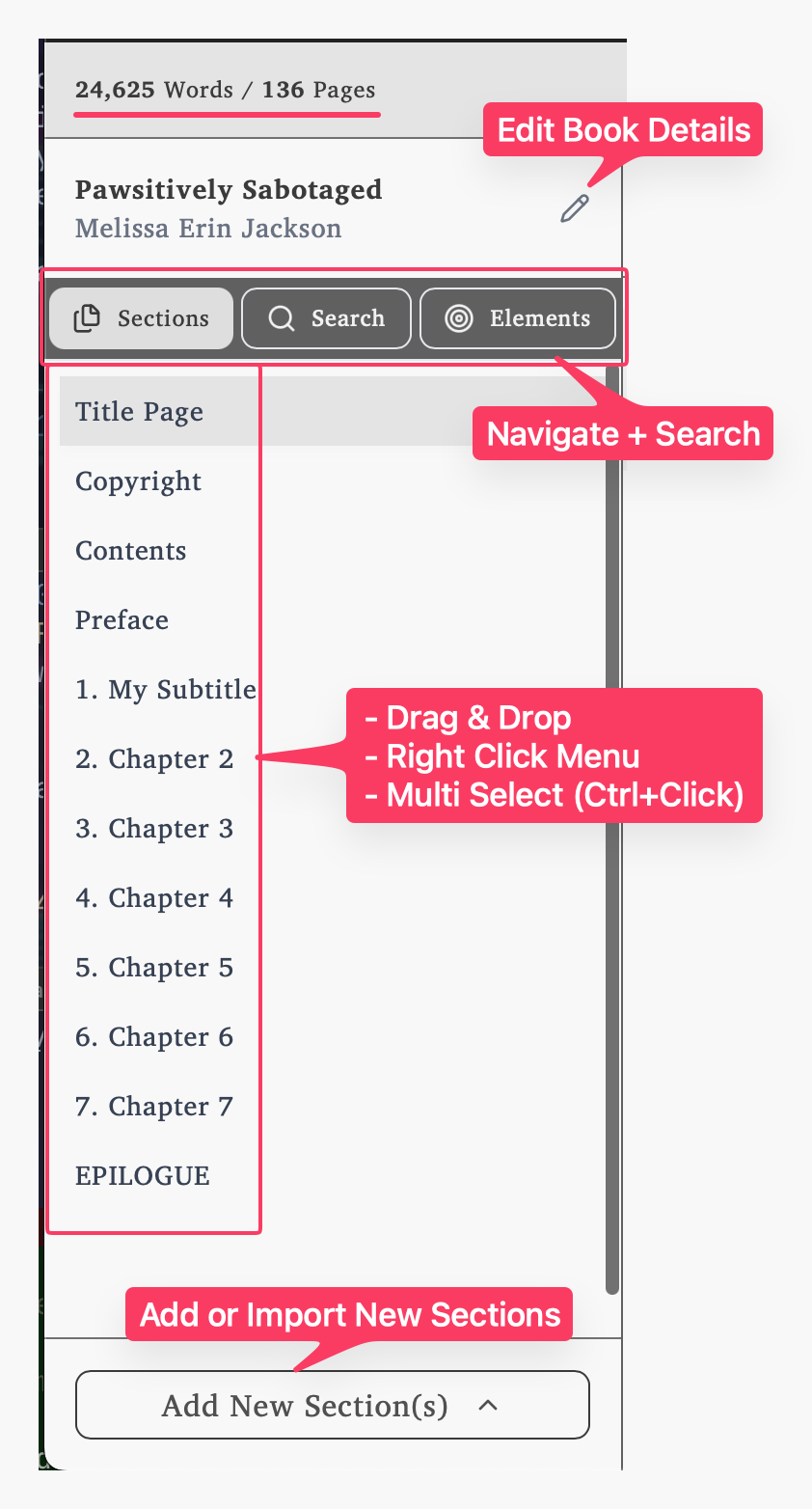
Quick verification: Check that chapters appear correctly in the sidebar and content displays properly in the preview. From here, you can manage book sections (reorder, rename, or group chapters) directly in the project sidebar. Lacuna autosaves your project as you work.
Learn the Editor
Master the toolbar and formatting
Explore all formatting tools and shortcuts for efficient editing. Editor toolbar guide →
Organize Structure
Arrange chapters and sections
Reorder, rename, and restructure your imported content. Organize sections →
Choose Design
Apply professional styles
Select from book styles that match your content. Book styles →
Add Metadata
Set publication details
Add title, author, and publishing information. Book metadata →
Images are the most common cause of slow imports. Each image has to be processed individually, so manuscripts with many images take longer.
Things to check:
Lacuna creates sections based on your heading styles. If your structure looks wrong, the issue is usually in how headings are formatted in your document.
Things to check:
You can always re-import after fixing your headings.
Without clear heading styles, Lacuna may merge content into a single section or split it unexpectedly.
How to fix it: