Keyboard Shortcuts
Press F1 in Lacuna to open the Keyboard Shortcuts editor, found on the Hotkeys tab of Lacuna Settings. Every shortcut on this page is fully customizable, so you can rebind any of them to the keys that match your muscle memory, and Restore defaults brings them all back if you change your mind.
Every shortcut also maps to a button in the editor toolbar, so you can pair both for the fastest workflow. Use find and replace text in your book when project-wide changes are easier than per-section edits.
Text Formatting
| Action | Windows | Mac |
|---|---|---|
| Bold | Ctrl+B | Cmd+B |
| Italic | Ctrl+I | Cmd+I |
| Underline | Ctrl+U | Cmd+U |
| Add/Edit Link | Ctrl+K | Cmd+K |
| Blockquote | Ctrl+Shift+B | Cmd+Shift+B |
| Text Conversation | Ctrl+Shift+T | Cmd+Shift+T |
| Set as Receiver (Left) | Ctrl+Alt+Left | Cmd+Alt+Left |
| Set as Sender (Right) | Ctrl+Alt+Right | Cmd+Alt+Right |
| Toggle Character Name | Ctrl+Alt+Up | Cmd+Alt+Up |
| Insert Grid | Ctrl+Shift+G | Cmd+Shift+G |
| Insert Columns | Ctrl+Shift+O | Cmd+Shift+O |
| Callout Box | Ctrl+Shift+C | Cmd+Shift+C |
| Add Footnote | Ctrl+Shift+N | Cmd+Shift+N |
| Add Endnote | Ctrl+Shift+M | Cmd+Shift+M |
| Device-Specific Block | Ctrl+Shift+D | Cmd+Shift+D |
| Small Caps | Ctrl+Shift+K | Cmd+Shift+K |
| Insert Ornamental Break | Ctrl+/ | Cmd+/ |
| Insert Page Break | Ctrl+\ | Cmd+\ |
Text Editing
| Action | Windows | Mac |
|---|---|---|
| Undo | Ctrl+Z | Cmd+Z |
| Redo | Ctrl+Y | Cmd+Y |
| Find in Section | Ctrl+F | Cmd+F |
| Replace in Section | Ctrl+H | Cmd+H |
Project-Wide
| Action | Windows | Mac |
|---|---|---|
| Undo (Project Wide) | Ctrl+Shift+Z | Cmd+Shift+Z |
| Redo (Project Wide) | Ctrl+Shift+Y | Cmd+Shift+Y |
| Show History | Ctrl+Shift+U | Cmd+Shift+U |
| Find in Project | Ctrl+Shift+F | Cmd+Shift+F |
| Replace in Project | Ctrl+Shift+H | Cmd+Shift+H |
| Find Elements | Ctrl+Shift+L | Cmd+Shift+L |
| Sync Editor to Previewer | Ctrl+] | Cmd+] |
| Sync Previewer to Editor | Ctrl+[ | Cmd+[ |
File
| Action | Windows | Mac |
|---|---|---|
| New | Ctrl+N | Cmd+N |
| Open | Ctrl+O | Cmd+O |
| Save | Ctrl+S | Cmd+S |
| Save As | Ctrl+Shift+S | Cmd+Shift+S |
View
| Action | Windows | Mac |
|---|---|---|
| Section Explorer | Ctrl+Shift+E | Cmd+Shift+E |
| Command Palette | Ctrl+P | Cmd+P |
| Device Preview | Ctrl+Shift+P | Cmd+Shift+P |
| Zen Mode | Ctrl+Alt+Z | Cmd+Alt+Z |
| Zoom In | Ctrl+= | Cmd+= |
| Zoom Out | Ctrl+- | Cmd+- |
| Reset Zoom Level | Ctrl+0 | Cmd+0 |
| Keyboard Shortcuts | F1 | F1 |
Bubble Menu
Select any text and a bubble menu appears with quick formatting options.
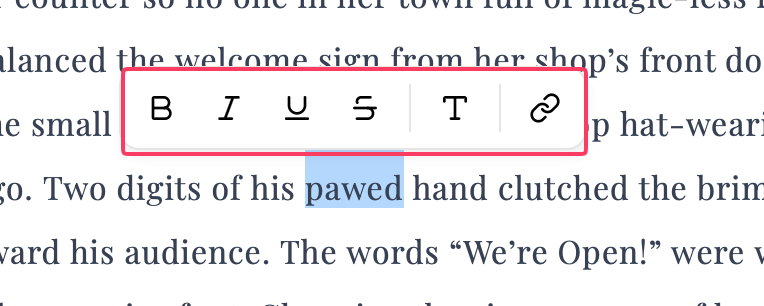
Select text, click an option, and keep editing. The menu disappears automatically.
Frequently Asked Questions
How do I use keyboard shortcuts?
For existing text:
- Select the text you want to format
- Press the keyboard shortcut
- Continue editing
For new text:
- Position your cursor where you want to start
- Press the keyboard shortcut to activate formatting
- Type your text with the formatting applied
- Press the shortcut again to turn off formatting
What’s the difference between section and project-wide actions?
Section actions (like Ctrl+Z for undo) only affect the section you’re currently editing.
Project-wide actions (like Ctrl+Shift+Z for project-wide undo) affect changes across your entire book, including section reordering, deletions, and metadata changes.