Images
Insert illustrations and visual elements. Managing images →
After importing your manuscript, the editor toolbar provides access to all the formatting features you need to transform your text into a professionally styled book. Pair it with keyboard shortcuts for the fastest formatting workflow.

Images
Insert illustrations and visual elements. Managing images →
Blockquotes
Emphasize important passages and memorable quotes. Learn about blockquotes →
Handwriting Text
Add authentic handwritten text for letters and notes. Explore handwriting →
Text Conversations
Add text message conversations between characters. Add text conversations →
Footnotes
Add footnotes and endnotes to your manuscript. Add footnotes →
Callout Boxes
Highlight important information with styled callout boxes. Create callouts →
Tables
Insert and format tables for structured data. Add tables →
Emojis
Add emojis to bring personality and visual interest to your book. Use emojis →
Links
Create hyperlinks and references. Creating links →
Page Breaks
Force content to start on a new page. Add page breaks →
Ornamental Breaks
Insert decorative scene dividers and section separators. Add ornamental breaks →
Device-Specific Blocks
Mark content as E-Book only or Print only inside a section. Add device-specific blocks →
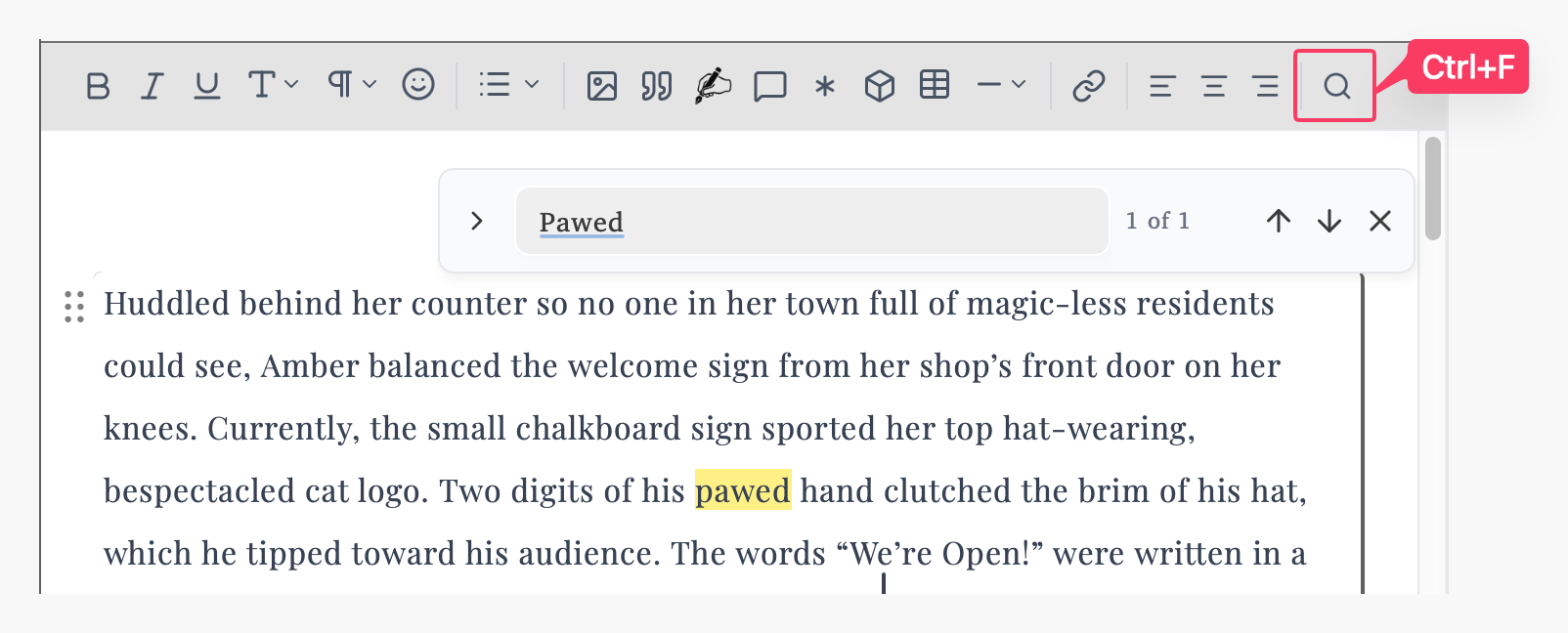
The search tool helps you find text within the section you’re currently editing: