Add Images to Your Book Content
Add a photo or illustration anywhere in your text, then align it, size it, wrap text around it, caption it, and more. This page covers adding an image and every control you get once it is in place.
Add an Image
- Position your cursor where you want the image to appear
- Click the image icon in your editor toolbar
- Upload a new image, or choose Browse Existing Images to reuse one from your image gallery
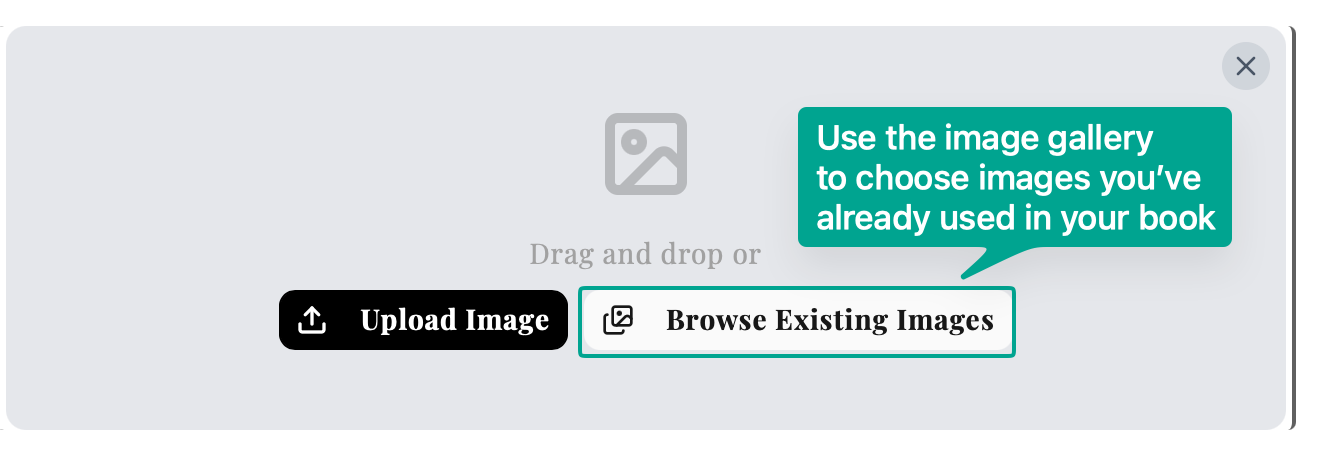
You can also paste an image straight into the editor: copy one from a web page (right-click, Copy Image) or copy an image file on your computer, then paste where you want it.
Adjust an Image
Click an image to select it. A toolbar appears above it for layout, and a row of buttons appears below it for content like captions and alt text.
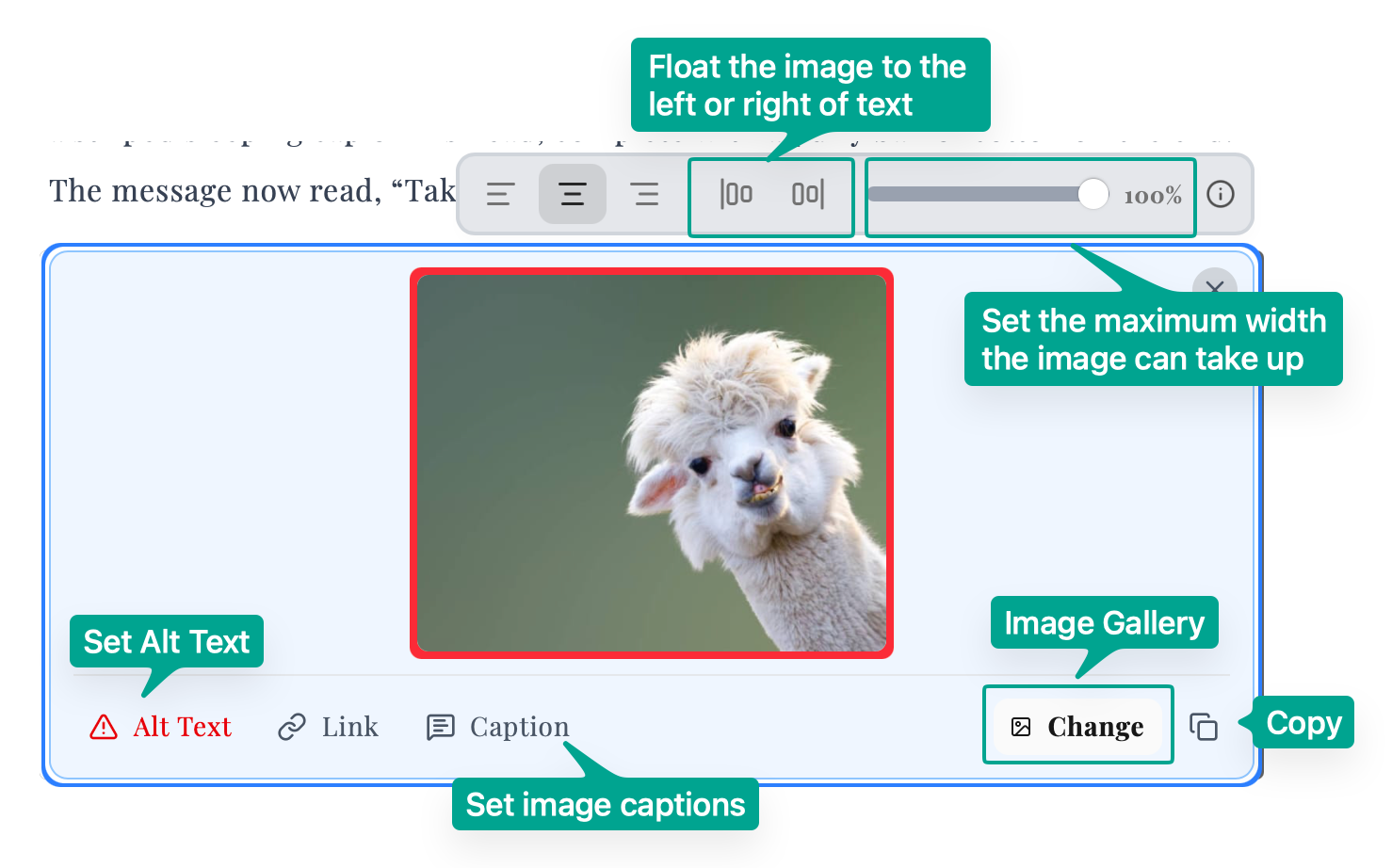
Layout (the toolbar above the image)
- Alignment. Place the image to the left, center, or right.
- Float. Wrap your text around the image on its left or right.
- Width. Set how wide the image is, as a percentage of the page.
- Spacing. Add space around the image on any side.
Content (the buttons below the image)
- Alt Text. A short description for readers who use a screen reader. Required for accessibility, covered in Alt Text for Accessibility below.
- Link. Make the image clickable, linking to a web address or to another section of your book.
- Caption. Add caption text under the image, choose a caption style, and open the caption style panel. See Captions below.
- Change. Swap in a different image from your gallery, keeping all your current settings.
Fit to Page
In a printed book, a tall image near the bottom of a page can get pushed to the next page, leaving a large gap. Fit to Page fixes that.
Open the Width control on a selected image and turn on Fit to Page. The image shrinks to fit whatever space is left on the current page instead of jumping to the next one. Text wrapping (Float) turns off while Fit to Page is on.
Captions
A caption is the line of text under an image. Click Caption on a selected image to add or edit the text. From the same menu you can choose a caption style and open the Image Captions panel to control its font, spacing, border, and colors. Remove a caption from that menu when you no longer want it.
Alt Text for Accessibility
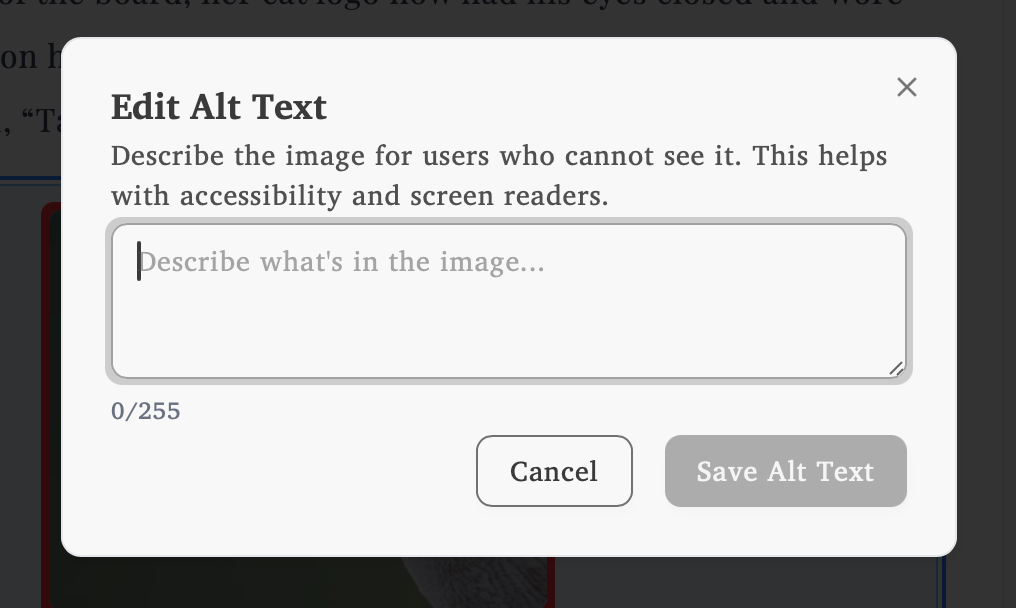
Alt text is a short description of an image for readers who cannot see it, such as those using a screen reader. Add it to every image.
- Click the image to select it
- Click the Alt Text button below the image
- Enter a clear description of what the image shows
- Save your changes
How do I tell which images still need alt text?
An image missing alt text shows a red border and a warning icon on its Alt Text button. Once you add a description, the border returns to normal.
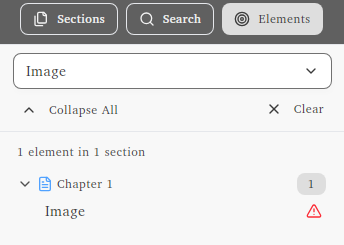
How do I find every image missing alt text at once?
Use the Elements tab in the project sidebar to list images without alt text, and jump straight to each one.
Decorative Images Across Sections
For the same art at the top of every chapter, use chapter heading images. For art that fills an entire page, like a frontispiece or a part divider, use full-page images.