Font & Layout Settings
Configure your book’s body typography and page layout conventions. Set your trim before tuning these (see trim sizes and page margins) and pair body type with book headers and footers for matching running heads.
Body Text Typography
This is where you customize the typography for your book’s body text.
- Font: Choose from a variety of fonts. Look for fonts with a green check mark, which have all the styles needed to render properly in your PDF.
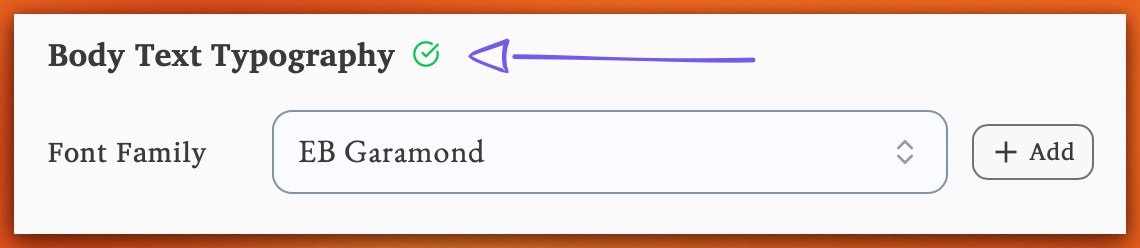
-
Size: Adjust the size of your body text.
-
Line Spacing: Control the spacing between lines.
Table of Contents
Generate a table of contents: Include a table of contents page with automatically generated page numbers. Lacuna updates page numbers as your content changes.
Page Numbering
Page numbering has its own dedicated panel and a full guide. See Page Numbering to control where numbering starts, switch off Roman numerals, show numbers on chapter opening pages, and fix numbers that reset to 1 on every chapter.
Chapter Layout Rules
-
First Chapter on Right: Inserts a blank page if needed so your first chapter begins on a right-hand (recto) page.
-
All Chapters on Right: Inserts blank pages between chapters as needed so every chapter begins on a right-hand page.
Pagination Control
Control how paragraph lines are distributed across page breaks.
-
Orphans: The minimum number of lines that must appear at the bottom of a page before a paragraph continues on the next page.
-
Widows: The minimum number of lines that must appear at the top of a page when a paragraph continues from the previous page.
Justification & Hyphenation
Text alignment and hyphenation have their own panel (under Typography & Layout in the Print Settings menu), with justification, word-splitting rules, and a hyphenation dictionary for words that break in the wrong spot. It covers both your print PDF and your EPUB. See the full guide: Justification & Hyphenation.
When your layout is locked in, export a print-ready PDF for KDP and IngramSpark.