Fonts
Every panel that styles text has a Font row: your body text, section titles, subheadings, headers and footers, captions and more. They all work the same way, so what you learn here applies everywhere you choose a font.
- What it covers
- Choosing a font, the check or warning beside it, its weights, and fonts missing from your computer.
- Where you see it
- The Font row of any style panel, such as Print Settings, then Body Text.
- Matters most in
- Your print-ready PDF, which never fakes a style the font does not have.
- Before you start
- Look for the green check before you settle on a font.
Choosing a font
Click the Font box to list your fonts, type to find one, and click it. Each name in the list is drawn in its own font, and a check mark beside a name marks the font you have now.
Once you choose, a green check or a warning triangle appears beside the Font box. It tells you whether the font can print every style your book may use.
What the check mark and the warning mean
Lacuna looks inside every font for five styles: Regular, Bold, Italic, Bold Italic and Small Caps. A font that has all five gets a green check. Hover over the check to see them.
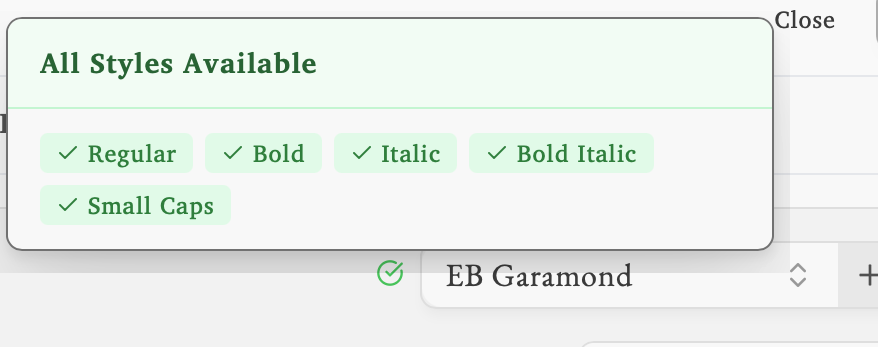
A font that is missing any of them gets a warning triangle instead. Its tooltip lists what is missing, then the styles the font does have.
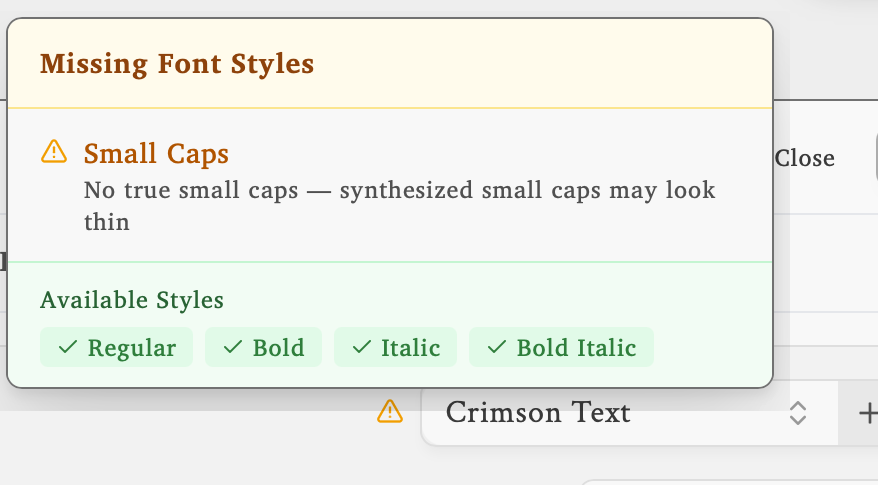
A print-ready PDF never fakes a style the font does not have. E-readers do their best to fake one, so your ebook may look fine while your printed book does not:
| Missing style | In print | In an ebook |
|---|---|---|
| Bold | Bold text prints at the font’s nearest weight, often Regular. | The e-reader thickens the letters. |
| Italic | Italic text prints upright. | The e-reader slants the letters. |
| Bold Italic | Bold italic text prints in the font’s italic, not bold (or upright, if the font has no italic either). | The e-reader thickens and slants the letters. |
| Small Caps | Small caps text prints as ordinary lowercase. | The e-reader shrinks capital letters, which can look thin. |
Small caps count only when they are real: the font has to carry its own small capital letters, not just claim to. Many good fonts have bold and italic but no small caps, like Crimson Text above, so check before you use small caps in your book.
To pick a font that prints every style, choose it and look for the green check before you click Apply. Serif fonts with every style include EB Garamond, Spectral, Literata, Source Serif 4, Charis SIL and Alegreya.
Weights
The Weight list beside a font offers only the weights that font has. Crimson Text has three:
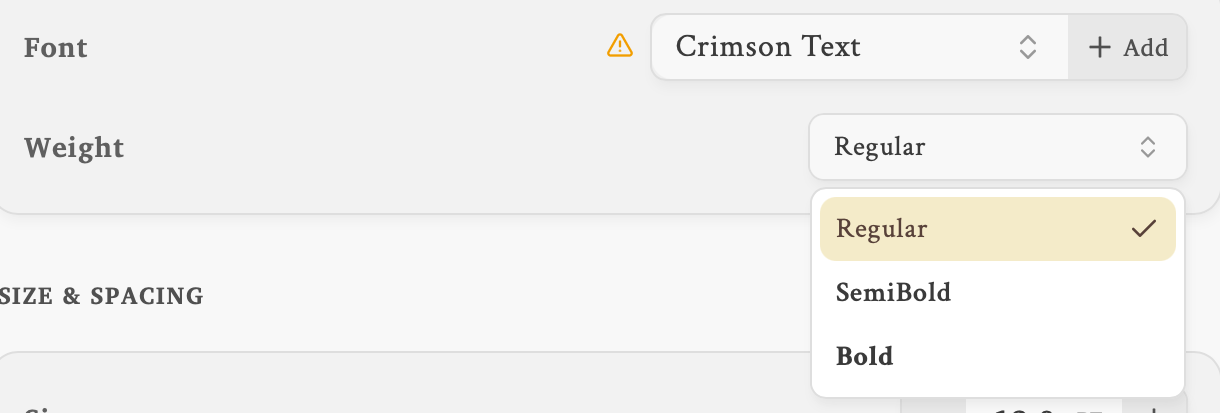
Some fonts have one weight, others as many as nine.
Opening a book on another computer
If a book uses fonts you don’t have, Lacuna tells you as soon as it opens (A font is missing or Some fonts are missing) and lists them. Click Download fonts to fetch them, or Not now to carry on. Until the fonts are added, the text prints in a stand-in font and won’t match your layout.
Questions
How do I add fonts?
Click + Add beside any Font box and follow the steps. A new font joins every font list, with its own check or warning.
Can I use small caps?
Yes, with a font that has real small caps: the green check, or no Small Caps row in the warning’s tooltip. In print, small caps text set in a font without them prints as ordinary lowercase.