Body Text Typography
Your body text is the paragraphs that make up most of your book. The Body Text panel sets the font they print in, how large they are and how much space sits between their lines, and, for print, how each paragraph breaks into lines.
- What it does
- Sets the font, size and spacing of your book's paragraphs, and how their lines break in print.
- Where to find it
- Print Settings, then Body Text, under Typography & Layout.
- Works in
- The Text tab: print-ready PDF and ebook PDF. The Line Breaking tab: print-ready PDF only. EPUB and DOCX leave the body font, size and spacing to the reader's app.
Choose your body font
- Open Print Settings in the top bar and choose Body Text, under Typography & Layout.
- Click the Font box to list your fonts. Type to find one, then click it.
- Check the mark beside the font: a green check means it prints every style.
- Click Apply.
Your changes show in the print preview as you make them. Apply saves them, as one step you can undo; Close without applying puts everything back. Changing the font sets Weight back to Regular.
The green check or warning beside the font tells you whether it prints every style your book may use: bold, italic, bold italic and small caps. Weight lists only the weights the font has. See Fonts for what the check and the warning mean, and what happens in print when a style is missing.
Set the size and line spacing
- Open Print Settings, then Body Text.
- Set Size, in points (12 pt unless you change it, and never below 6).
- Set Line Spacing, the distance from one line to the next as a multiple of the text size (1.0 to 2.5).
- Click Apply.
Smaller text and tighter spacing fit more words on each page, so your book gets shorter.
Underline links, under Links, is on unless you turn it off. A print-ready PDF prints each link as its web address; with this off, the address prints without an underline. See links.
How lines break Print only
The Line Breaking tab controls how justified paragraphs break into lines in your print-ready PDF and its preview. It changes nothing in your EPUB, DOCX or ebook PDF, where the reader’s app breaks the lines. Whether your text is justified, and how words are hyphenated, are set in Justification & Hyphenation.
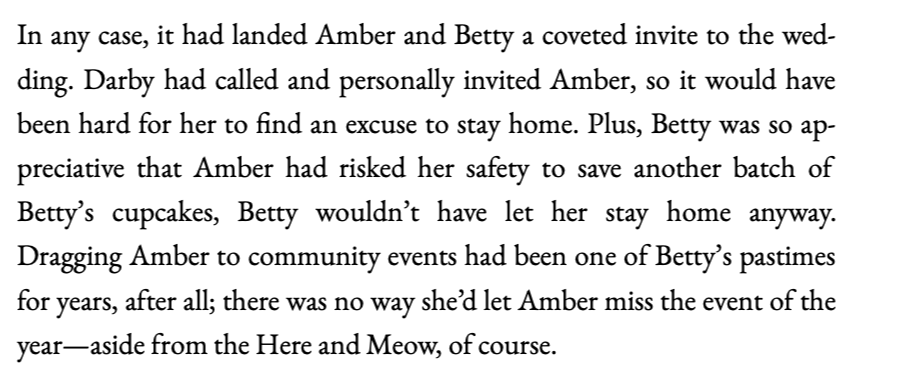
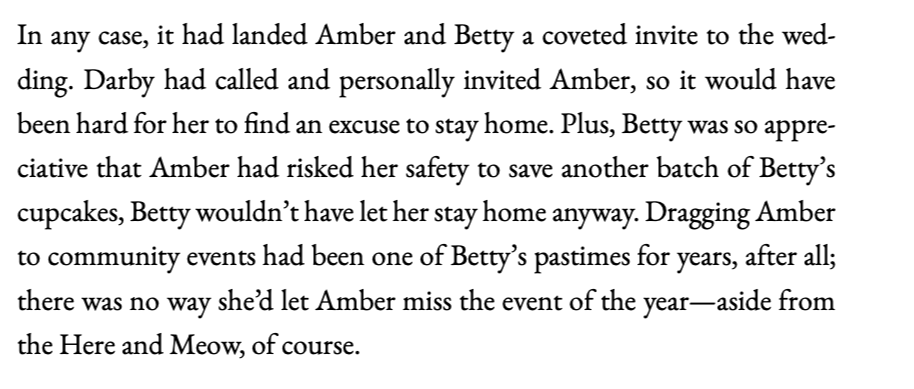
The three settings below each fix a different problem, and work together. The pictures show the same paragraph from the Epilogue of Pawsitively Sabotaged with each setting off and then on.
Paragraph Optimizer Beta
- Open Print Settings, then Body Text, and click the Line Breaking tab.
- Turn on Paragraph Optimizer. The line under it changes from Line-by-line (fast) to Whole-paragraph (best quality).
- Set Letter Spacing Adjustment Allowed, if you like (0 to 10%).
- Click Apply.
Off, Lacuna fills each line before it starts the next. On, it chooses where all of a paragraph’s lines end together, so one line can be set a little tighter to spare the next a wide gap or a split word. It is the method TeX uses (a Knuth-Plass line breaker).
Letter Spacing Adjustment Allowed shows while the optimizer is on. It lets the optimizer set a line’s letters slightly closer once its word spaces are already at their narrowest. It only ever tightens, and 0% never changes letter spacing.
Off: the fifth line is stretched with wide gaps between its words.
On: the lines before it give a little, and the gaps even out.
Word spacing
- Open the Line Breaking tab of Body Text.
- Turn on Adjust word spacing.
- Set Narrowest space (50 to 100%) and Widest space (100 to 300%), or keep 85% and 200%.
- Click Apply.
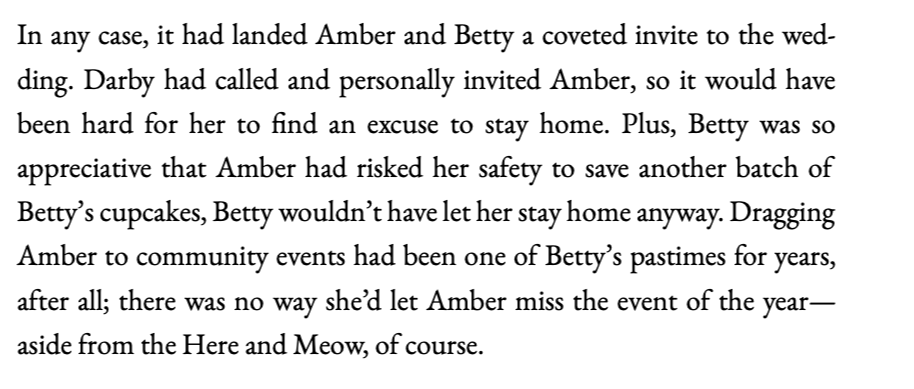
Justified lines always stretch or squeeze their word spaces to fill the line. Adjust word spacing lets Lacuna use that room while it chooses where lines break, so more words fit without being split and fewer lines end up gappy. 100% is the font’s normal space. A word is hyphenated only when leaving it out would stretch the spaces past Widest space.
Adjust word spacing is on for new books. Books saved before it existed keep it off, so they print exactly as they did; turn it on to use it.
Off: “ap-preciative” is split, and the fifth line has wide gaps.
On: “appreciative” fits whole, and no line is gappy.
Fix runts
- Open the Line Breaking tab of Body Text.
- Turn on Fix runts, under Runts.
- Click Apply.
A runt is a paragraph’s last line holding one short word on its own. Fix runts pulls that word up onto the line above. It narrows the paragraph’s word spaces first, and sets its letters slightly closer only when that is not enough. Books saved before word spacing existed fix runts by setting letters closer only; turn Fix runts off and on again to fix them the new way.
Off: “uncle?”” sits alone on the paragraph’s last line.
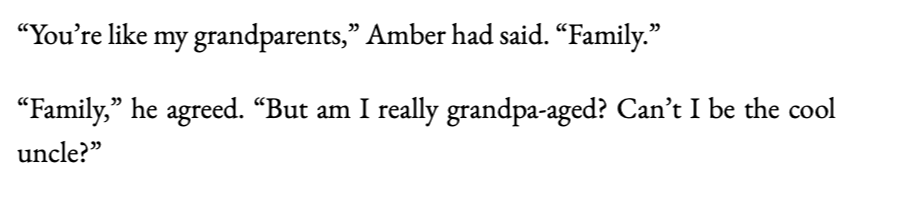
On: “uncle?”” moves up, and the paragraph takes one line.

Widows and orphans Print only
- Open Print Settings and choose Widows & Orphans, under Typography & Layout.
- Set Orphans: the fewest lines of a paragraph that may sit at the bottom of a page before it continues on the next (1 unless you change it).
- Set Widows: the fewest lines of a paragraph that may carry over to the top of the next page (2 unless you change it).
- Click Apply.
Both go from 0 to 6 lines. When a paragraph would leave fewer lines than that on either side of a page break, Lacuna moves lines to the next page.
To give one section its own values, open its Options menu, choose Customize Print Settings, open the Content tab, and turn on Override Widows & Orphans under Pagination.
Start sections on a right-hand page
Printed books usually start the story, and often every new section, on a right-hand page. To choose:
- Open Print Settings and choose Chapter Type Options, under Page Setup.
- Open the Starting Side tab.
- Turn on or off Only the first chapter starts on a right-hand page (on unless you change it) and All chapters start on a right-hand page (off unless you change it).
Lacuna adds a blank page wherever one is needed to land a section on a right-hand page. If you see blank pages you don’t want, turn both off.
To choose the side for one section, open its Options menu, choose Customize Print Settings, and set Start Page Side on the Page Start tab: Recto (Right-hand page), Verso (Left-hand page) or Default. See Chapter Type Options for more.
Questions
How do I change my book’s font?
Open Print Settings, choose Body Text, pick a font in the Font list, and click Apply. See Choose your body font. Headings, headers and footers have their own fonts in their own panels.
How do I make the text bigger?
Raise Size in the Body Text panel and click Apply. Your page count grows with it. See Set the size and line spacing.
How do I change the line spacing?
Set Line Spacing in the Body Text panel: 1.0 is the tightest, and larger numbers add space between lines.
How do I add fonts?
Click + Add beside the Font box and follow the steps. See Fonts.
How do I get rid of orphan lines?
Raise Orphans (a paragraph’s lone first line at the bottom of a page) or Widows (its lone last line at the top of the next) in Print Settings, then Widows & Orphans. See Widows and orphans. For a lone short word at the end of a paragraph, turn on Fix runts.
When your text is set, export a print-ready PDF for KDP and IngramSpark.