Using the Toolbar
- Click the image icon in your editor toolbar
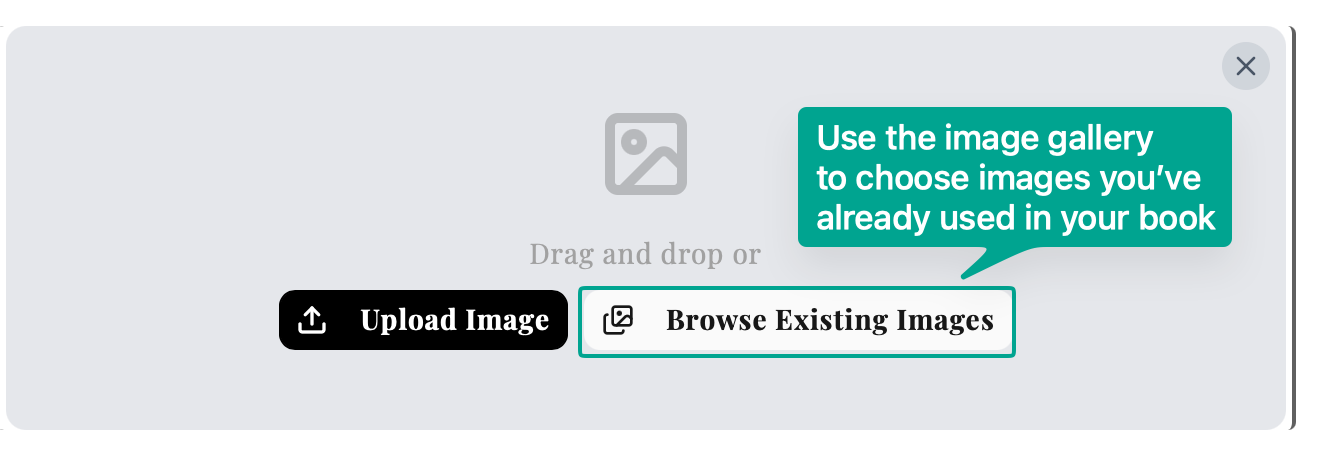
- Upload a new image or Browse Existing Images from your gallery
- Position the image where you want it
Lacuna supports PNG, JPG, and WebP formats up to 10MB, with automatic optimization to reduce file size.
Using the Toolbar
Copy and Paste
Paste images directly into the editor:
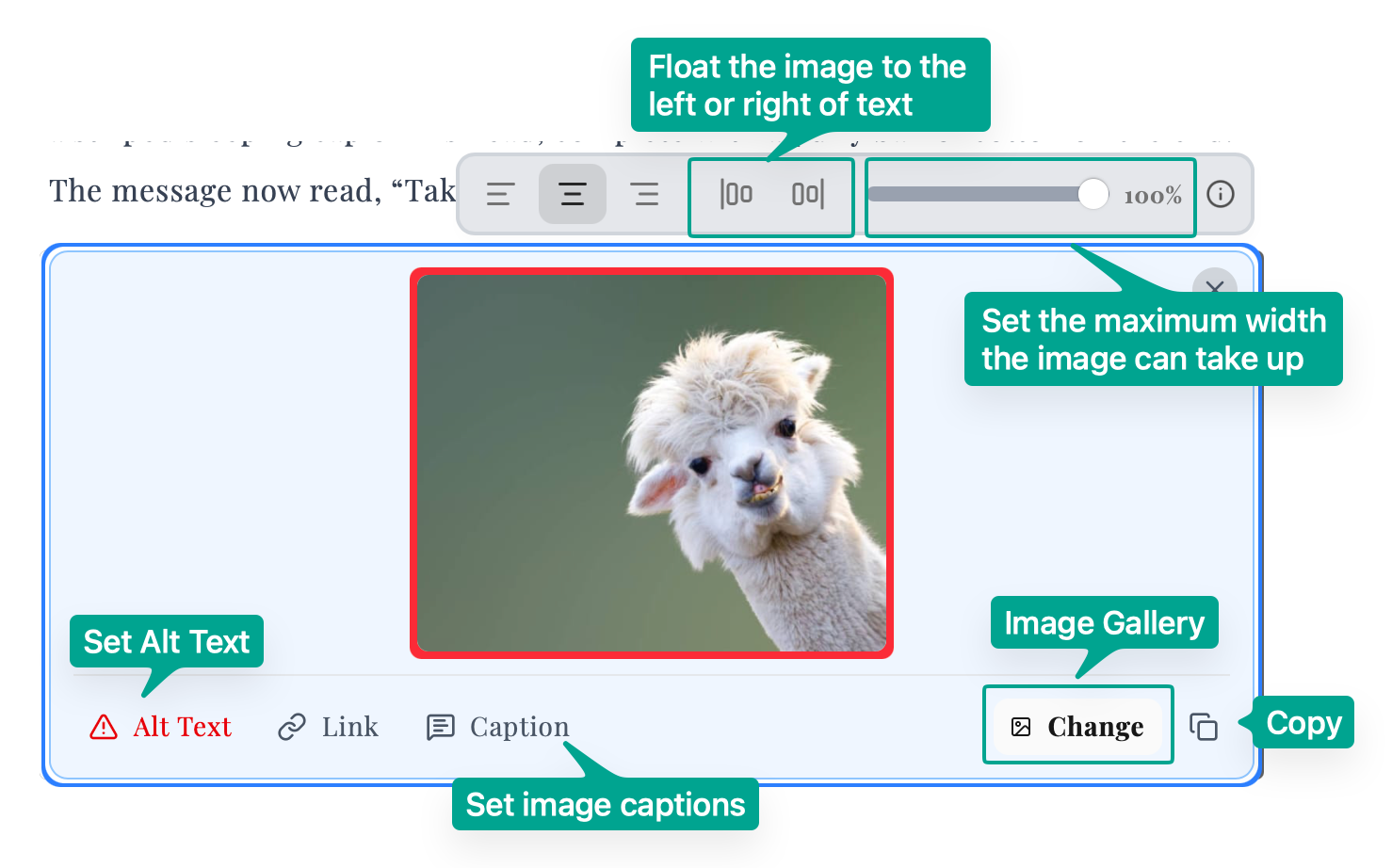
Select any image to access these options:
| Option | What It Does |
|---|---|
| Alignment | Position left, center, or right |
| Float | Wrap text around the image |
| Width | Set maximum width percentage |
| Alt Text | Add accessibility description |
| Link | Make the image clickable |
| Caption | Add text below the image |
| Change | Swap to a different image |
Alt text helps visually impaired readers understand your images. Add it to every image in your book.
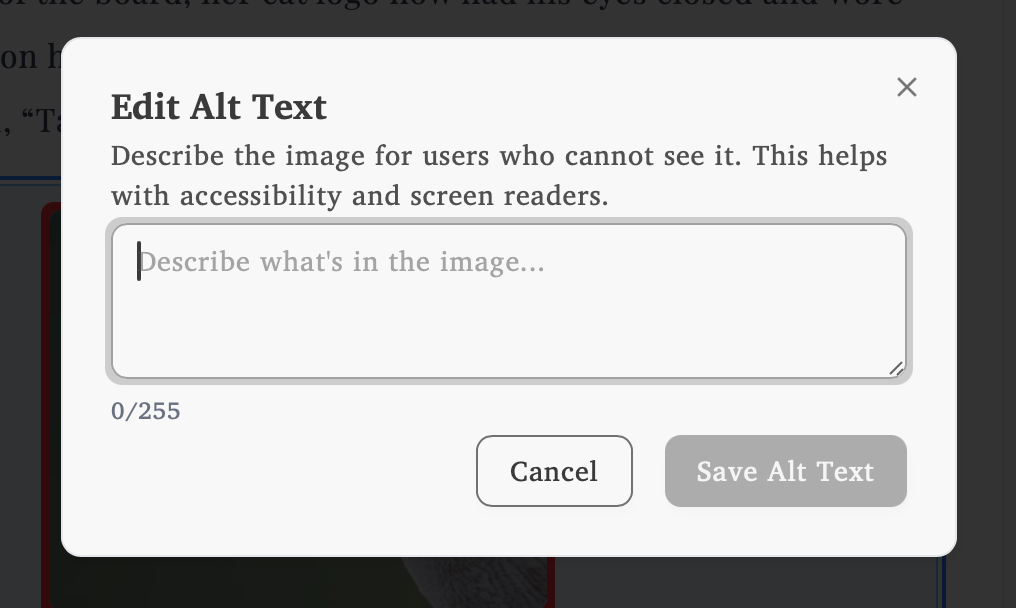
Images missing alt text display a red border and warning icon in the bubble menu. Once you add alt text, the border returns to normal.
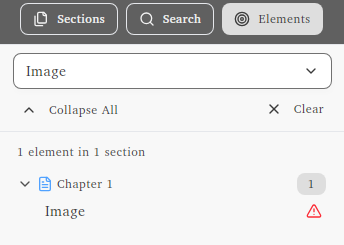
Use the Elements tab in the section sidebar to find images without alt text. Look for the alert icon next to flagged images.