Device-Specific Sections
Control which sections appear in your EPUB versus print output by setting device types.
When to Use Device-Specific Sections
- Different ISBNs — Your copyright page may need different ISBN numbers for EPUB and print versions
- Format-specific content — Your About the Author page might include clickable links for EPUB but display URLs as text for print
- Unique layouts — Some sections may need entirely different formatting depending on the output
How to Set Device Type
- Right-click any section in the sidebar
- Select Set Device Type
- Choose EPUB only, print only, or both
The previewer and export process automatically ignore sections that don’t match the selected output format.
Visual Indicators
The sidebar displays icons to identify device-specific sections:
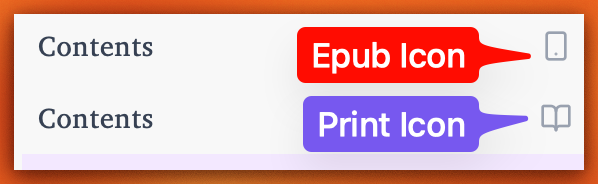
- Phone icon — Section appears only in EPUB
- Book icon — Section appears only in print
- No icon — Section appears in both formats